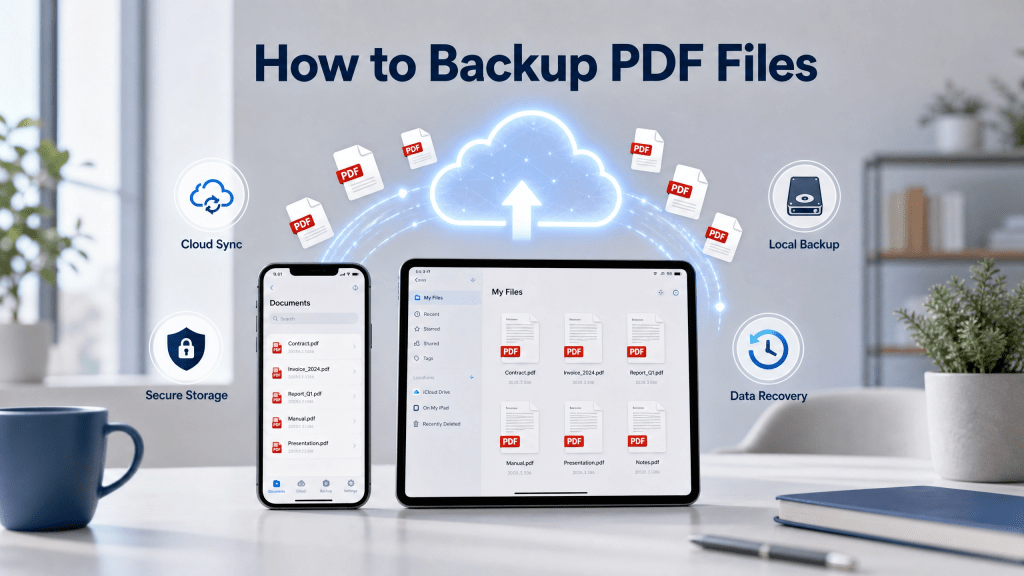
PDF files are an essential part of both personal and professional digital life. From contracts and invoices to study materials and reports, people store a huge amount of important information in PDF format. But what happens if your device is lost, damaged, or accidentally reset?
That’s where proper pdf backup ios strategies become critical.
Backing up your PDF files ensures you never lose important documents and can access them anytime, anywhere—even when switching devices.
In this guide, we’ll explain the best ways to back up PDF files on iPhone and other devices, and how to keep them organized safely.
Best Ways to Backup PDF Files
There are several reliable methods to back up PDF files depending on your workflow.
1. Cloud Storage Backup
Cloud services are one of the most popular ways to store PDFs safely.
Benefits include:
- Automatic syncing across devices
- Remote access from anywhere
- Easy file sharing
- Secure storage
You can upload PDFs and access them later from any smartphone, tablet, or computer.
2. Local Device Backup
Another method is storing PDFs directly on your device and using system backups.
For iPhone users, this often includes:
- iCloud backup
- iTunes or Finder backup
- Device storage management
This ensures your files are restored if you change or reset your phone.
3. External Storage Backup
Some users prefer physical storage options such as:
- USB drives
- External SSDs
- SD cards (with adapters)
These are useful for long-term offline storage.
Why PDF Backup is Important
Many users underestimate the importance of backing up files until something goes wrong.
Common risks include:
- Accidental deletion
- Device loss or theft
- Software crashes
- Storage corruption
- Failed updates
Without a backup system, recovering important PDFs can be difficult or even impossible.
Organizing PDF Files Before Backup
Before creating backups, it’s important to organize your files properly.
Good organization includes:
- Naming files clearly
- Grouping documents into folders
- Removing duplicates
- Sorting by category (work, personal, study)
A well-organized structure makes backup and recovery much easier.
Managing PDFs on iPhone
For iPhone users, file organization plays a major role in backup efficiency.
You can:
- Store PDFs in the Files app
- Use cloud integration
- Tag and categorize documents
- Search files instantly
If you want to improve PDF organization and management on iOS, this guide is helpful:
How to Manage PDF Files on iPhone
Proper management ensures smoother backup workflows.
Compress PDFs Before Backup
Large PDF files take up more storage space and may slow down syncing.
Before backing up:
- Compress large PDFs
- Remove unnecessary images
- Reduce file size without losing quality
- Split large documents if needed
Smaller files make backups faster and more efficient.
Use Reliable PDF Tools
Not all tools handle PDF storage and backup equally well.
Some tools provide:
- Automatic backup options
- Cloud syncing
- File compression
- Secure storage encryption
If you are looking for a simple PDF scanning and storage workflow, you can explore:
Scan Nova PDF Tool
Common Mistakes in PDF Backup
Many users make mistakes that lead to data loss:
- Relying on a single storage location
- Not enabling cloud sync
- Forgetting to update backups
- Ignoring file organization
- Using unsecured storage platforms
Avoiding these mistakes significantly improves data safety.
Why PDF Backup on iOS is Special
iOS devices offer strong built-in backup features, making pdf backup ios workflows very convenient.
Advantages include:
- Automatic iCloud syncing
- Seamless device migration
- Secure encrypted storage
- Easy file recovery
This makes iPhone one of the most reliable devices for document storage.
Real-World Experience with File Backup
Many users only realize the importance of backups after losing data.
You’ve probably run into this too — scanning a code and nothing happens.
Similarly, users often expect files to always be accessible, but without proper backup systems, important PDFs can disappear unexpectedly.
Best Practices for PDF Backup
To ensure your PDFs are always safe:
- Use multiple backup locations
- Enable automatic cloud sync
- Regularly update backups
- Organize files before saving
- Encrypt sensitive documents
Following these steps reduces the risk of data loss significantly.
Security Considerations
PDF backups often contain sensitive data.
To protect them:
- Use password protection
- Enable encrypted cloud storage
- Avoid public sharing links for private files
- Regularly review access permissions
Security is just as important as storage.
Future of PDF Backup Systems
PDF storage technology is evolving rapidly.
Future improvements may include:
- AI-based file organization
- Automatic backup scheduling
- Smart duplicate detection
- Faster cloud synchronization
- Cross-platform real-time syncing
These advancements will make file management even easier.
Final Thoughts
Backing up PDF files is no longer optional—it is essential. Whether you are storing work documents, personal files, or educational materials, a reliable pdf backup ios strategy ensures your data is always safe and accessible.
By combining cloud storage, proper organization, and secure tools, you can protect your files from unexpected loss and maintain a smooth digital workflow.
Get the App
Start managing and backing up your PDF files easily on iPhone:


Leave a comment