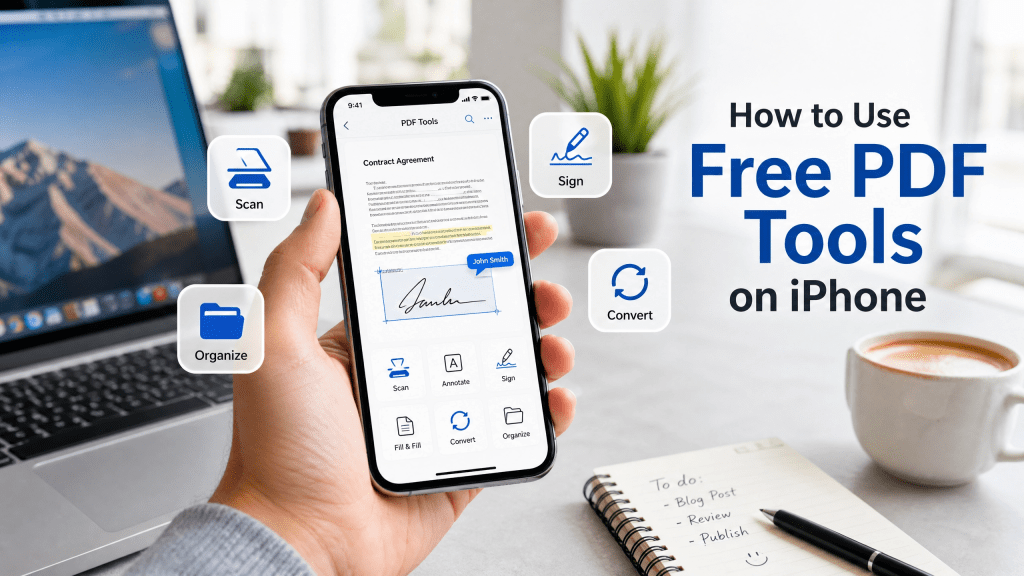
Managing documents on a phone used to feel inconvenient, but today your iPhone can handle almost every PDF task you need. From scanning receipts to editing contracts, modern tools make it easy to work without a computer. In this guide, we’ll explore how to use a pdf tools app on iPhone to scan, edit, annotate, and manage documents efficiently.
Editing PDFs on iPhone Without Stress
Editing PDFs used to be frustrating, but now mobile tools make it straightforward. A modern pdf tools app usually includes editing features such as:
- Highlighting text
- Adding notes or comments
- Drawing or signing documents
- Inserting images or stamps
This is especially useful for reviewing contracts or marking important study notes. Instead of printing documents, you can edit everything digitally in minutes.
For users who want more detailed editing instructions, this guide is helpful:
How to Annotate PDF on iPhone Free
It explains how annotation works step by step and shows practical use cases for everyday users.
Organizing Your PDF Files Efficiently
Once you start using PDFs regularly, organization becomes important. A good PDF tool on iPhone helps you:
- Create folders for documents
- Rename files for clarity
- Sort by date or category
- Search text inside PDFs
This saves time when you need to find a specific document quickly. Instead of scrolling endlessly, everything stays structured and easy to access.
Why PDF Tools Matter on iPhone
PDF has become the universal format for documents, whether it’s invoices, contracts, study materials, or forms. The challenge is that many people still think editing PDFs requires expensive software or a desktop computer.
That is no longer true. A good pdf tools app on iPhone allows you to:
- Scan paper documents into PDF instantly
- Edit and annotate text
- Merge or split files
- Convert images into PDFs
- Share files quickly via email or cloud
This flexibility is especially useful for students, remote workers, and business owners who need to handle documents on the go.
Scanning Documents into PDF on iPhone
One of the most common uses of PDF tools is document scanning. Instead of using a bulky scanner, your iPhone camera can do the job in seconds.
Here’s how it usually works:
- Open your PDF tools app
- Select “Scan Document”
- Point your camera at the paper
- Auto-crop and adjust edges
- Save as PDF
The quality is often surprisingly clear, especially when the app includes auto-enhancement features like brightness correction and edge detection.
If you want to try a lightweight online option, you can explore tools like Scannova PDF Tool, which provides fast document conversion features directly from your browser.
Converting Files into PDF Format
Another powerful feature is file conversion. A PDF tool app can convert:
- Photos into PDFs
- Word documents into PDFs
- Scanned pages into multi-page files
This is useful for sending professional documents. For example, you can take a picture of a signed form and instantly convert it into a PDF file ready for email submission.
Many users are surprised how often they use this feature once they discover it.
Signing Documents Digitally
One of the biggest advantages of using a PDF tool on iPhone is digital signing. Instead of printing, signing, and scanning documents, you can simply:
- Open the PDF
- Select “Sign” or “Fill”
- Draw your signature
- Place it anywhere on the document
- Save and share
This is widely used in business contracts, rental agreements, and school forms.
Real-Life Example: Why PDF Tools Are Useful
Imagine you are traveling and receive an urgent document that requires your signature. Without PDF tools, you would need a printer and scanner. But with your iPhone, you can handle everything in minutes.
At first, I thought all QR scanners worked the same, but that’s not really true.
The same idea applies to PDF tools. Not all apps are equal—some are slow, limited, or full of ads, while others are smooth, fast, and designed for productivity. Choosing the right tool makes a huge difference in daily workflow.
Security and Privacy Considerations
When dealing with documents, security matters. A reliable PDF tool should ensure:
- Local processing when possible
- Secure cloud storage (if used)
- No unauthorized file sharing
- Encrypted transfers
Always check permissions before uploading sensitive documents.
Tips for Getting the Most Out of PDF Tools
To improve your experience with PDF tools on iPhone, consider these tips:
- Use folders for better organization
- Compress large PDFs before sharing
- Keep a backup of important documents
- Use annotation instead of printing
- Explore batch processing features
These small habits can significantly improve productivity.
Choosing the Right PDF Tools App
Not every app offers the same experience. When selecting a PDF tool, look for:
- Simple user interface
- Fast scanning performance
- Reliable annotation tools
- Offline functionality
- Export options (email, cloud, AirDrop)
A well-designed app will save you time and reduce frustration in daily tasks.
Final Thoughts
Using a pdf tools app on iPhone is no longer optional—it’s becoming essential for both personal and professional use. Whether you are scanning documents, editing contracts, or signing forms, everything can be done directly from your phone.
Instead of relying on multiple tools or physical scanners, a single app can handle almost everything related to PDFs. The key is choosing a reliable solution and learning how to use its features effectively.
Download the App
If you are ready to start using a powerful PDF tool on your iPhone, you can download it here:


Leave a comment