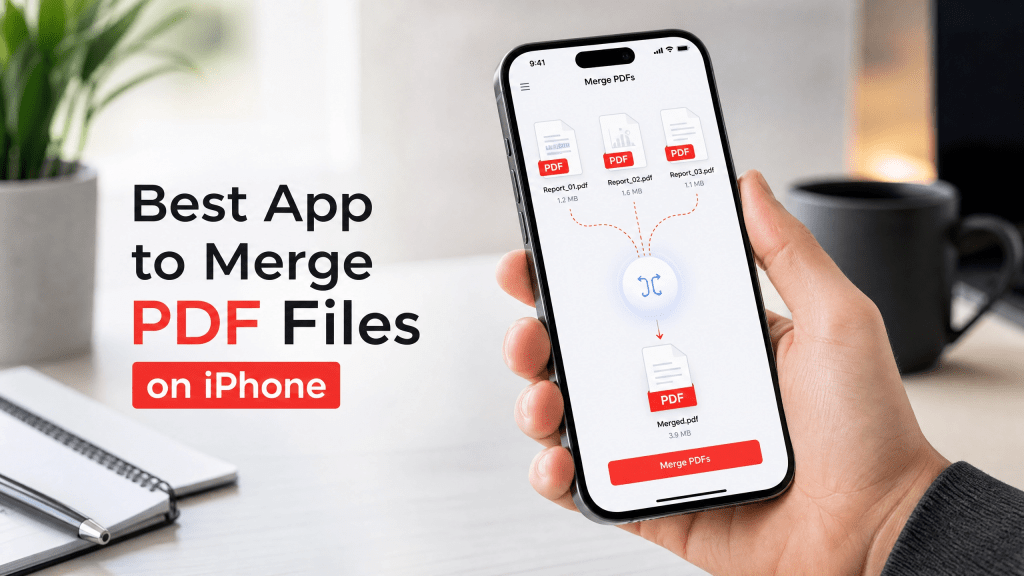
Merging PDF files on iPhone has become a common task for students, professionals, and business users. Whether you are combining invoices, reports, study materials, or scanned documents, having a reliable merge pdf app can save a lot of time and effort.
In this guide, we’ll explore how PDF merging works on iPhone, what features to look for in a good app, and the best practices to combine PDF files efficiently without losing quality.
What is a merge PDF app?
A merge pdf app is a tool that allows users to combine two or more PDF files into a single document.
Most apps offer features like:
- Drag and drop merging
- Page reordering
- File preview before merging
- Compression after merging
- Export options (email, cloud, local storage)
These features help streamline document management directly from a smartphone.
Why merge PDF files on iPhone?
There are many real-world situations where merging PDFs is useful:
- Combining multiple invoices into one file
- Merging scanned receipts for expense reports
- Joining chapters of study materials
- Creating a single document from multiple scans
- Organizing business contracts
- Preparing reports for clients or school
Instead of sending multiple files, a single merged PDF looks more professional and is easier to manage.
Best features to look for in a PDF merge app
When choosing a PDF merging tool for iPhone, consider the following:
1. Easy interface
A good app should allow users to merge files in just a few taps.
2. Fast processing
Speed matters, especially when handling large documents.
3. No watermark
Clean output is important for professional use.
4. File security
Your documents should remain private and secure.
5. Additional tools
Useful extras include:
- PDF compression
- Editing tools
- File conversion
- Annotation support
How to merge PDF files on iPhone
The process is usually simple:
Step 1: Open PDF merge app
Install and launch a trusted PDF tool.
Step 2: Select files
Choose the PDFs you want to combine from:
- Files app
- iCloud Drive
- Downloads
- Email attachments
Step 3: Arrange order
Reorder pages or files as needed.
Step 4: Merge files
Tap merge or combine button.
Step 5: Save output
Export the final merged PDF to your device or cloud storage.
Online vs offline PDF merge tools
Online tools
Pros:
- No installation required
- Quick access
- Works on any device
Cons:
- Requires internet
- Privacy concerns for sensitive files
Offline apps
Pros:
- Works without internet
- Better privacy control
- Faster processing for large files
Cons:
- Requires installation
- May take storage space
Common problems when merging PDFs
1. File size too large
Large PDFs may slow down merging or increase storage usage.
2. Formatting issues
Some tools may alter layout slightly.
3. Missing pages
Poor apps may fail to include all pages.
4. Low-quality output
Compression settings can reduce clarity.
Tips for better PDF merging
Keep files organized
Rename files before merging for easier management.
Check file order
Always preview before final merging.
Compress large files
This helps reduce final document size.
You can also use tools like Scannova PDF tools for additional file handling and document processing features.
Editing before merging
Sometimes it’s better to edit PDFs before combining them.
You may need to:
- Remove unnecessary pages
- Fix formatting errors
- Add annotations
- Insert signatures
This guide explains how simple PDF editing improves workflow efficiency: free PDF editor without watermark.
Why simplicity matters in PDF apps
Many users think advanced apps are better, but that is not always true.
In reality:
- Simple tools are easier to use
- Fewer features reduce confusion
- Faster apps improve productivity
- Clean interfaces reduce errors
In my experience, a simple and fast QR scanner is way better than one with too many features.
The same principle applies to PDF apps—simplicity often leads to better performance and user experience.
Who should use PDF merge apps?
PDF merging tools are useful for:
Students
Combining lecture notes and assignments.
Office workers
Merging reports and presentations.
Freelancers
Organizing client documents.
Legal professionals
Combining contracts and legal files.
General users
Managing scanned documents and receipts.
Security considerations
When merging PDFs, always ensure:
- Files are not uploaded to unknown platforms
- Sensitive documents are encrypted
- Access permissions are controlled
- Apps follow privacy standards
Security is especially important for business and legal documents.
Future of PDF merging tools
PDF technology continues to evolve:
- AI-based document organization
- Smart page detection
- Automatic file naming
- Cloud synchronization
- Real-time collaboration features
These improvements will make document management even easier in the future.
Final thoughts
Finding the best app to merge pdf files iphone depends on your needs, but the key factors remain the same: simplicity, speed, and reliability.
A good merge pdf app should allow you to combine documents quickly without sacrificing quality or security.
With the right tool, managing PDFs on iPhone becomes fast, efficient, and stress-free—whether for work, study, or personal use.
For users who prefer a lightweight and reliable PDF workflow, you can also try this iPhone tool for document management: iPhone PDF App Download


Leave a comment