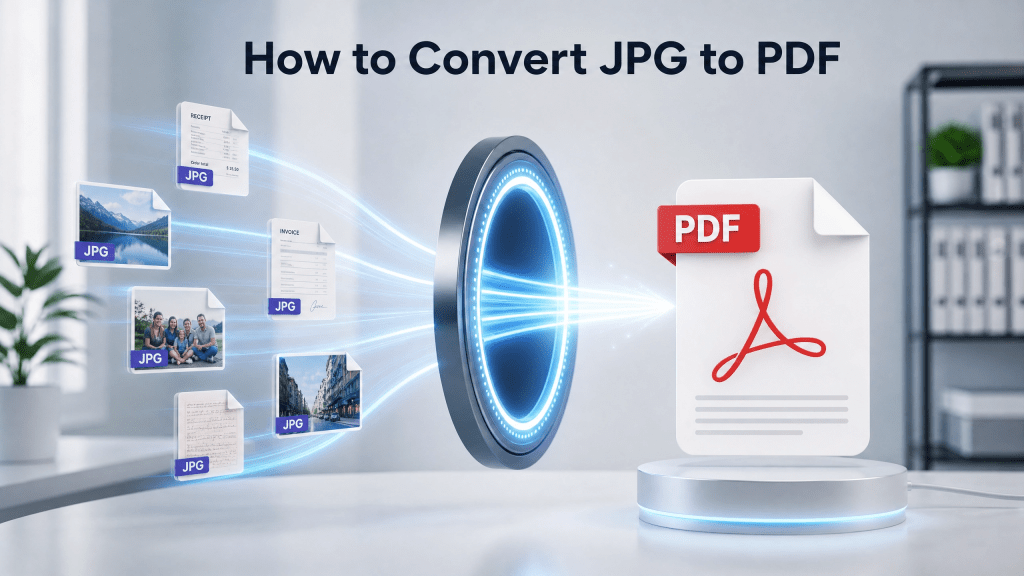
Converting images into PDF files is one of the most common digital tasks today. Whether you are organizing scanned documents, saving receipts, preparing reports, or sharing photos in a professional format, knowing how to handle jpg to pdf conversion can make your workflow much smoother.
PDF format is widely used because it preserves layout, works across all devices, and is easy to share without losing quality. Turning JPG images into PDF files helps you keep everything organized in a single document instead of multiple image files.
In this guide, we’ll explain why JPG to PDF conversion is useful, how it works, and the easiest ways to do it on different devices.
Benefits of JPG to PDF conversion
1. Better organization
Multiple images can be stored in one file.
2. Easier sharing
Instead of sending many images, you send one PDF.
3. Professional appearance
PDF files look more formal and structured.
4. Printing consistency
Layout stays the same across devices.
5. Reduced clutter
Keeps files clean and easy to manage.
Why convert JPG to PDF?
JPG images are great for photos, but they are not always ideal for document management.
Common issues with JPG files:
- Hard to organize multiple images
- No page structure
- Difficult to print in order
- Takes more effort to share in bulk
- No document formatting control
PDF solves these problems by combining images into a structured, single-file format.
Common use cases
Receipts and invoices
Store financial records in a single PDF document.
Scanned documents
Convert paper documents into digital archives.
School assignments
Submit multiple pages in one file.
Business reports
Combine screenshots and visual data.
Personal organization
Save important images in structured format.
How JPG to PDF conversion works
The process is usually simple:
- Select JPG images
- Arrange order of pages
- Convert images into PDF format
- Export and save file
Behind the scenes, the system places each image into a PDF page structure.
How to convert JPG to PDF (step-by-step)
Step 1: Select your images
Choose images from:
- Phone gallery
- Camera roll
- Cloud storage
- Scanned documents
Step 2: Arrange image order
Make sure pages are in correct sequence before exporting.
Step 3: Choose conversion tool
You can use:
- Mobile apps
- Online converters
- Built-in system tools
Step 4: Export as PDF
The tool combines all images into one file.
Step 5: Save or share
You can then:
- Email the PDF
- Upload to cloud storage
- Share via messaging apps
JPG to PDF on mobile devices
Mobile workflows have made document conversion much easier.
Most smartphones now support:
- Built-in conversion tools
- PDF scanning apps
- Cloud-based file management
This allows users to create PDFs anytime without needing a computer.
Why PDF is better for documents
While JPG is great for photos, PDF is better for structured content.
PDF advantages:
- Fixed layout
- Multi-page support
- Better readability
- Professional format
- Cross-device compatibility
This is why most business and academic documents use PDF format.
Tips for better JPG to PDF results
1. Use high-quality images
Clear images improve readability.
2. Keep correct order
Always organize pages before exporting.
3. Avoid oversized files
Compress images if needed.
4. Maintain consistent orientation
Mixing portrait and landscape can look messy.
5. Remove unnecessary images
Keep only relevant content.
Common mistakes to avoid
1. Random image order
Pages should always be structured logically.
2. Low-resolution photos
Blurry images reduce document quality.
3. Large file sizes
Uncompressed images create heavy PDFs.
4. Skipping preview step
Always check final output before sharing.
Editing PDFs after conversion
After converting JPG to PDF, users often need to:
- Merge multiple PDFs
- Add annotations
- Compress file size
- Rearrange pages
- Fill forms
For example, combining multiple PDF files is a common requirement in real workflows, especially for business and education use cases: best app to merge PDF files iPhone.
Tools for document scanning
Many users also start with scanning physical documents before converting them into PDFs.
Modern tools make it easy to scan, organize, and process files digitally: document scanning tools.
Why simplicity matters in file conversion
Many apps today include too many unnecessary features that slow down simple tasks.
If you’re like me, you just want something that works instantly without extra steps.
Simple tools that focus on fast conversion often provide a better experience than complex software with many menus and settings.
Security considerations
When handling images and documents:
- Avoid uploading sensitive files to unknown platforms
- Use trusted tools for conversion
- Store files securely in cloud storage
- Protect important documents when needed
Security is especially important for personal or business information.
Offline vs online conversion tools
Offline tools:
- Work without internet
- Faster processing
- Better privacy
Online tools:
- No installation needed
- Easy access anywhere
- More feature flexibility
Choose based on your workflow needs.
Why JPG to PDF conversion is widely used
This process is popular because it:
- Simplifies sharing
- Improves organization
- Supports professional workflows
- Works across all devices
- Reduces file clutter
From students to professionals, almost everyone benefits from it.
Final thoughts
Learning how to convert jpg to pdf is a simple but powerful productivity skill. It helps you organize images, improve document sharing, and maintain a professional workflow across personal and business tasks.
With modern mobile tools and cloud services, converting images into PDFs is now faster and easier than ever before, making it an essential part of everyday digital life.


Leave a comment