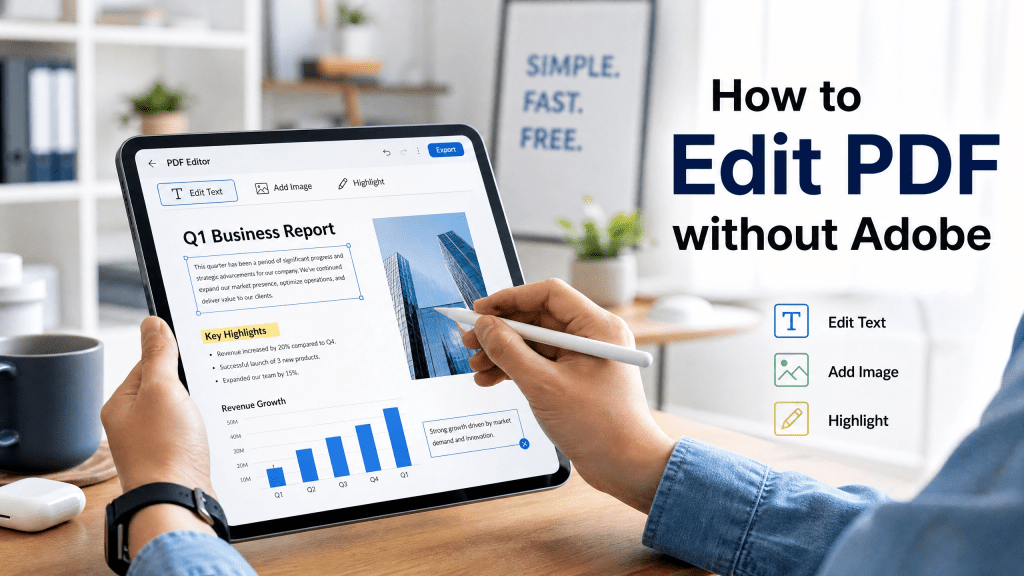
Editing PDF files is something almost everyone needs at some point—whether it’s updating a resume, correcting a contract, filling out forms, or reorganizing documents. Traditionally, people rely on Adobe Acrobat, but today there are many easier and more flexible options available.
If you are looking for a practical pdf alternative, you don’t need to depend on heavy or expensive software anymore. Modern mobile and web tools allow you to edit PDFs quickly, directly from your phone or browser.
In this guide, we’ll explore how to edit PDFs without Adobe, what tools you can use, and how to handle common editing tasks efficiently.
What can you edit in a PDF?
Modern PDF tools allow you to:
- Edit text
- Add or remove images
- Highlight important sections
- Fill out forms
- Rearrange pages
- Merge multiple documents
- Compress file size
This makes PDF editing useful for both personal and professional use.
Why look for an Adobe alternative?
Adobe Acrobat is powerful, but it’s not always the most convenient option.
Common issues include:
- High subscription cost
- Heavy software performance
- Complex interface for beginners
- Limited mobile flexibility in some cases
Because of this, many users now prefer lightweight and faster alternatives.
Best ways to edit PDF without Adobe
Method 1: Online PDF editors
Online tools allow quick editing without installing software.
Steps:
- Upload PDF file
- Select editing tool
- Make changes
- Download updated file
This is the fastest option for simple tasks.
Method 2: Mobile PDF apps
Smartphone apps now support full PDF editing features:
- Text modification
- Annotation tools
- Page management
- File conversion
Mobile editing is especially useful for users on the go.
Method 3: Built-in system tools
Some devices include basic PDF editing features:
- Markup tools
- Annotation options
- File preview editing
These are useful for light editing tasks.
Method 4: Document conversion workflow
Sometimes editing becomes easier after converting formats.
For example, converting images or scanned documents into editable PDFs helps improve workflow efficiency. This guide explains how image-based PDF creation works step by step: how to convert JPG to PDF.
Common PDF editing tasks
Editing text content
Correct spelling, update details, or rewrite sections.
Adding annotations
Useful for feedback, review, or collaboration.
Page organization
Reorder or delete unnecessary pages.
Merging documents
Combine multiple PDFs into one file.
File compression
Reduce file size for easier sharing.
Why mobile PDF editing is growing
Mobile devices have become the primary tool for document handling.
Users now prefer:
- Fast editing
- Cloud integration
- Simple interfaces
- Instant sharing options
If you’re like me, you just want something that works instantly without extra steps.
Choosing the right PDF alternative
A good pdf alternative should include:
1. Easy interface
No complicated menus or learning curve.
2. Fast performance
Editing should be instant and responsive.
3. Multiple tools
Support for editing, merging, and converting.
4. Mobile support
Ability to work from anywhere.
5. File security
Safe handling of personal documents.
Practical use cases for PDF editing
Business documents
- Contracts
- Reports
- Proposals
Education
- Assignments
- Research notes
- Study materials
Personal use
- Forms
- Resumes
- Receipts
Office workflows
- Internal documents
- Project files
- Meeting notes
Common problems when editing PDFs
1. Locked PDFs
Some files cannot be edited directly.
2. Formatting issues
Layout may shift during editing.
3. Large file size
Heavy PDFs may slow down editing tools.
4. Compatibility issues
Not all tools support all PDF features.
Tips for better PDF editing
Keep original copy
Always save a backup before editing.
Use simple tools for simple tasks
Avoid overcomplicated software.
Check formatting after edits
Ensure layout remains correct.
Compress large files
Improve performance and sharing speed.
Document scanning and PDF creation
Before editing, many users first convert physical documents into PDFs.
This process is useful for:
- Paper contracts
- Printed notes
- Receipts and invoices
Modern scanning tools make this process easy and mobile-friendly: document scanning tools.
Why alternatives are becoming more popular
Users are moving away from traditional software because they want:
- Simpler workflows
- Lower cost tools
- Mobile accessibility
- Faster editing experience
The focus has shifted from complex features to practical usability.
Security considerations
When editing PDFs online or on mobile devices:
- Avoid uploading sensitive files to unknown platforms
- Use trusted tools
- Protect important documents with passwords
- Delete temporary files after use
Security is especially important for legal and financial documents.
Final thoughts
Learning how to edit PDFs without Adobe is no longer difficult. With modern tools, users can perform almost any editing task quickly and efficiently without heavy software.
A reliable pdf alternative gives you flexibility, speed, and simplicity—whether you’re working on business documents, school assignments, or personal files.
As digital workflows continue to evolve, lightweight and mobile-friendly PDF editing tools are becoming the preferred choice for most users.


Leave a comment