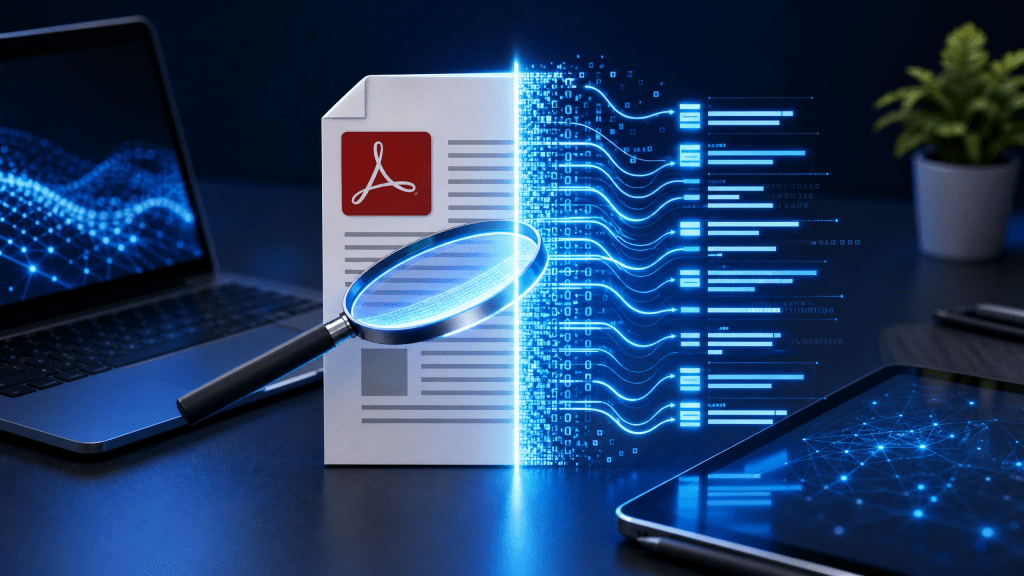
Why Convert PDF to Text?
PDFs are great for sharing, but not always convenient for editing.
Common reasons to convert PDF to text:
- Extract information for reports
- Reuse content in documents or emails
- Edit scanned files
- Analyze large amounts of text
- Improve accessibility
Once converted, the text becomes easier to manipulate, search, and reuse.
PDF files are one of the most common document formats used today. They preserve layout, fonts, and images across devices, which makes them ideal for sharing. However, when you need to edit or reuse content, converting a PDF into editable text becomes essential. Learning how to handle pdf to text conversion can significantly improve productivity in both personal and professional workflows.
In this guide, we’ll explore different methods to convert PDF files into text, including online tools, mobile apps, and desktop solutions.
Method 1: Use Online Tools
One of the fastest ways to convert PDF files is through online platforms.
Steps:
- Upload your PDF file
- Choose “Convert to Text”
- Wait for processing
- Download the extracted text
A useful starting point is scannovapdf.com, which provides simple tools for handling document conversions without complicated setup.
Method 2: Use Mobile Apps
Mobile apps make it easy to convert PDFs directly from your phone.
Benefits:
- Fast and convenient
- Works anywhere
- Supports multiple file formats
- Often includes OCR features
OCR (Optical Character Recognition) is especially important for scanned PDFs, as it allows the app to recognize and extract text from images.
If you’re also working with image-based documents, this guide on how to create PDF from photos shows how you can build PDFs before converting them into text.
Method 3: Use Desktop Software
For large or complex documents, desktop software is often more powerful.
Advantages:
- Higher accuracy
- Batch processing support
- Advanced editing tools
- Better handling of large files
This method is commonly used in offices, research environments, and legal workflows where precision matters.
Understanding PDF to Text Conversion
When working with pdf to text tools, there are two main types of conversion:
1. Digital PDF Conversion
These PDFs already contain selectable text. Conversion is usually instant.
2. Scanned PDF Conversion
These are image-based PDFs. They require OCR technology to extract text accurately.
The second type is more complex and may require higher-quality tools for best results.
Method 4: OCR-Based Conversion
OCR technology plays a key role in modern PDF conversion tools.
How OCR works:
- Scans the image
- Identifies characters
- Converts them into editable text
This is especially useful for scanned documents, receipts, or handwritten notes.
Best Practices for Accurate Conversion
To get the best results when converting PDFs into text, follow these tips:
1. Use High-Quality PDFs
Blurry scans reduce accuracy.
2. Choose the Right Tool
Not all converters handle OCR well.
3. Check Formatting After Conversion
Some layout changes may occur.
4. Edit Manually if Needed
Always review extracted text for errors.
Common Use Cases
PDF to text conversion is widely used across industries:
- Students: Extract notes and study material
- Business users: Edit reports and contracts
- Researchers: Analyze large documents
- Developers: Process structured data
It simplifies workflows and saves significant time.
Troubleshooting Issues
Poor Text Accuracy
Try using a higher-quality OCR tool.
Missing Content
Ensure the entire PDF is uploaded correctly.
Formatting Problems
Some layouts may not convert perfectly and require manual adjustments.
Slow Processing
Large files may take longer to convert.
Real Experience
After tinkering with it all night, I finally got it working… At first, I underestimated how important OCR quality was, but once I switched tools, the difference in accuracy was huge. The entire process became much smoother and more reliable.
Final Thoughts
Converting PDFs into text is an essential skill in today’s digital workflow. Whether you’re extracting data, editing documents, or repurposing content, understanding pdf to text conversion helps you work more efficiently.
By choosing the right tools and following best practices, you can quickly transform static documents into editable and reusable content.
Download the App
If you want a simple way to handle PDF conversion and editing on your phone, try this app:
It helps you convert, edit, and manage PDFs easily from anywhere.


Leave a comment