Why Convert Photos to PDF?
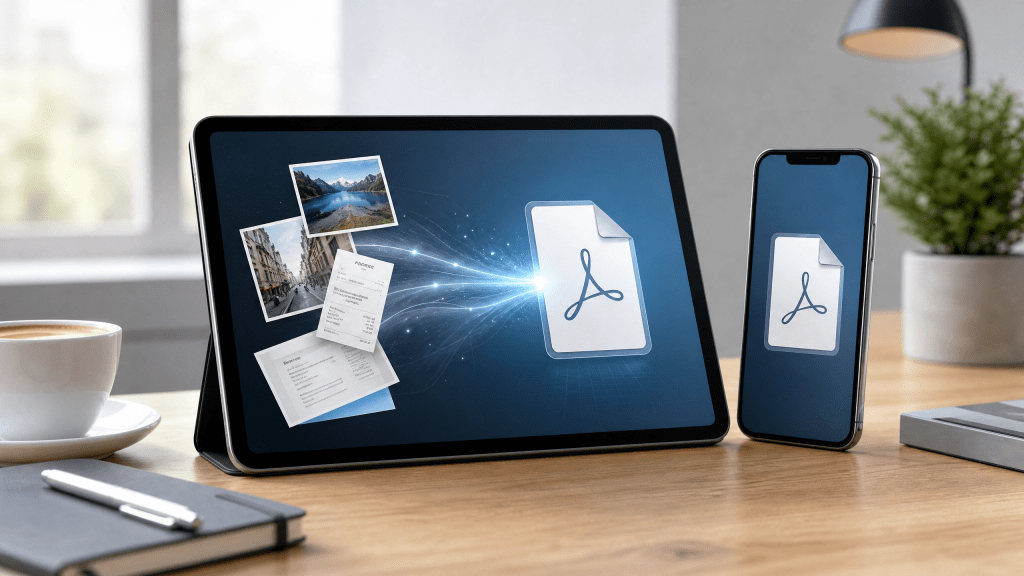
Photos are easy to take, but not always easy to manage. PDFs solve this problem by combining multiple images into a single, structured file.
Benefits of converting photos to PDF:
- Easier file sharing
- Better document organization
- Preserves image quality
- Compatible across all devices
- Ideal for professional use
Instead of sending multiple images, a single PDF looks cleaner and more professional.
Turning images into PDFs has become an essential task for students, professionals, and everyday users. Whether you’re scanning documents, saving receipts, or organizing visual content, learning how to convert photo to pdf efficiently can save time and keep your files organized.
In this guide, we’ll walk through step-by-step methods to create PDFs from photos using different tools, including mobile apps, online platforms, and built-in device features.
Method 1: Use Online Tools
One of the simplest ways to convert photos is through online platforms.
Steps:
- Open an online converter
- Upload your images
- Arrange them in order
- Click “Convert”
- Download the PDF file
A useful platform for this workflow is available at scannovapdf.com, which helps streamline the conversion process without requiring complex software.
Method 2: Use iPhone Built-in Features
If you’re using an iPhone, you don’t necessarily need extra apps.
Steps:
- Open the Photos app
- Select the images you want
- Tap “Share”
- Choose “Print”
- Pinch out on the preview to generate a PDF
- Save or share the file
This method is quick and works well for basic needs.
Method 3: Use Dedicated Mobile Apps
For more advanced features like editing, compression, and batch processing, mobile apps are the best option.
Apps often allow you to:
- Combine multiple photos into one PDF
- Adjust image order
- Compress file size
- Add annotations
If you need a more detailed guide, this resource on how to create PDF from photos explains additional workflows and tips for mobile users.
Method 4: Convert Photos on Desktop
For users handling large batches of images, desktop software is often more efficient.
Advantages:
- Faster processing for multiple files
- Advanced editing tools
- Better control over layout
This is especially useful for office or academic work where precision matters.
Best Practices for Photo to PDF Conversion
To get the best results when working with photo to pdf conversion, keep these tips in mind:
1. Use High-Quality Images
Low-resolution photos will result in poor PDF quality.
2. Organize Before Converting
Arrange images in the correct order before creating the PDF.
3. Keep File Size in Check
Large PDFs can be difficult to share—use compression if needed.
4. Choose the Right Tool
Different tools serve different purposes. Pick one based on your workflow.
Common Use Cases
Converting photos into PDFs is useful in many everyday scenarios:
- Students: Submitting assignments or notes
- Business users: Sharing reports or receipts
- Travelers: Storing documents and tickets
- Freelancers: Sending portfolios or scanned work
It’s a flexible solution that works across industries.
Troubleshooting Common Issues
Images Not Aligning Properly
Check orientation before converting.
File Too Large
Use compression tools to reduce size.
Blurry Output
Ensure original photos are high resolution.
Conversion Fails
Try a different tool or refresh the upload.
Real Experience
After tinkering with it all night, I finally got it working… At first, I struggled with formatting and file size issues, but once I found the right workflow, converting photos into PDFs became incredibly simple and fast.
Final Thoughts
Learning how to create PDFs from photos is a valuable skill that improves productivity and organization. Whether you use online tools, mobile apps, or built-in device features, the process is straightforward once you understand the basics.
From quick conversions to professional document preparation, photo to pdf tools make it easier than ever to manage visual content efficiently.
Download the App
If you want a faster and more convenient way to convert and manage PDFs, try this app:
It helps you create, edit, and organize PDFs directly from your phone with ease.


Leave a comment