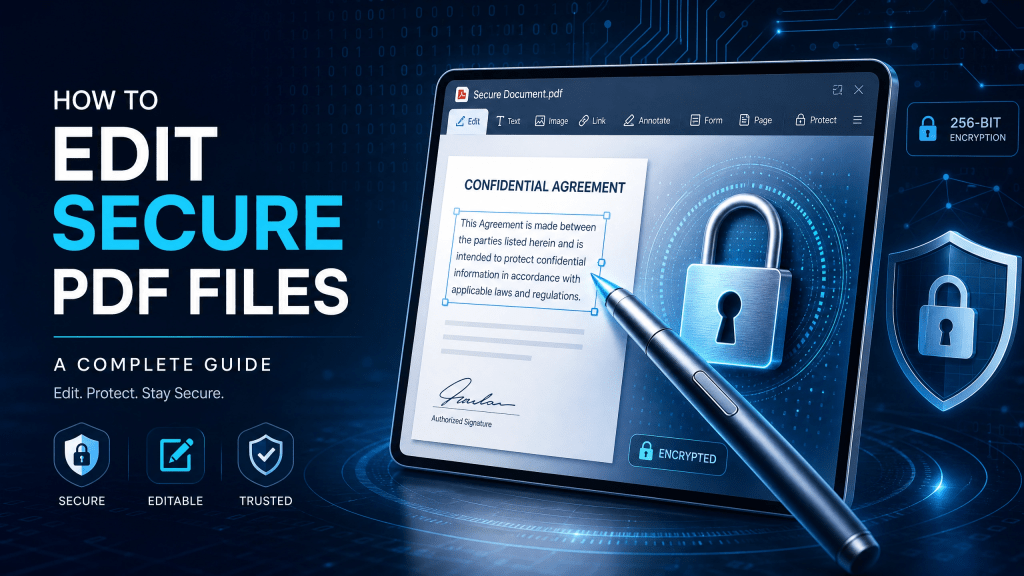
Secure PDF files are widely used in business, legal, education, and healthcare environments because they protect sensitive information while preserving document formatting. However, editing a secure PDF can be challenging if you don’t have the right tools or workflow.
In this guide, you’ll learn how to safely edit protected PDFs, what tools to use, and how to avoid common mistakes that can compromise document security.
Why editing secure PDFs is different
Unlike regular documents, secure PDFs are designed to prevent unauthorized changes. This means:
- You may not be able to edit text directly
- Some tools will block modifications
- Permissions may restrict saving changes
- Encryption may require authentication
Because of this, choosing the right tool is critical.
A reliable secure pdf editor is designed to handle these restrictions while preserving document integrity.
What is a secure PDF file?
A secure PDF is a document that has protection features such as:
- Password protection
- Editing restrictions
- Printing limitations
- Copy prevention
- Encryption layers
These protections ensure that only authorized users can access or modify the file.
However, when you need to update content, correct errors, or add information, you must use a proper workflow to edit it safely.
Step 1: Check document permissions
Before editing, always check what is allowed:
- Can you edit text?
- Can you add annotations?
- Is the file password protected?
- Is printing or copying restricted?
Understanding permissions helps you choose the correct editing method.
Step 2: Use a trusted PDF editor
Not all tools can handle secure files properly. A good editor should support:
- Password unlocking (if authorized)
- Annotation and markup tools
- Text editing capabilities
- Form filling support
- Encryption preservation
If your file comes from scanned documents or image-based PDFs, you may need conversion tools before editing.
For example, this platform helps manage scanned and structured PDF workflows efficiently:
👉 secure pdf editor
Step 3: Unlock or access the file (if permitted)
If your PDF is password-protected:
- Enter the correct password
- Confirm editing permissions
- Open the file in an editor
If you do not have permission, you should not attempt to bypass security restrictions. Always work within authorized access.
Step 4: Edit the PDF content
Once the file is accessible, you can:
- Modify text sections
- Add or remove images
- Insert comments or annotations
- Highlight important sections
- Fill out forms
Modern PDF tools allow direct editing similar to word processors.
Step 5: Save securely
After editing:
- Save a new version of the file
- Keep the original as backup
- Reapply encryption if needed
- Ensure permissions remain intact
This step is important for maintaining document security.
Advanced workflow: converting secure PDFs
Sometimes editing directly is not practical. In such cases, converting the document into editable text can help.
This is especially useful when working with scanned documents or locked layouts.
You can learn more about extracting content here:
👉 secure pdf editor workflow
Once converted, you can easily edit and restructure the content before saving it back as a PDF.
Common problems when editing secure PDFs
1. Cannot edit text
Some PDFs are flattened or image-based.
2. Password restrictions
Without the correct password, editing is not possible.
3. Formatting issues
Text alignment may break after editing.
4. Loss of security settings
Some tools may remove encryption unintentionally.
Best practices for secure PDF editing
To ensure safety and efficiency:
- Always verify document permissions
- Use trusted editing tools
- Avoid unknown or unverified software
- Keep backups of original files
- Reapply encryption after editing
These steps help maintain both security and data integrity.
Real-world experience with PDF tools
Many users try different applications before finding one that truly works for secure document editing. In practice, not all tools handle protected PDFs properly.
Some apps look good, but once you use them, you realize they’re not that reliable.
This is especially true for free tools that may lack proper encryption handling or crash when processing large files.
When to avoid editing secure PDFs
There are cases where editing is not recommended:
- Legal contracts without permission
- Government-issued documents
- Certified records
- Locked or signed PDFs
In these cases, you should request an editable version from the original source instead.
Final thoughts
Editing secure PDF files requires the right tools, proper permissions, and a careful workflow. While it may seem complex at first, modern PDF editors make the process much simpler and safer.
By following best practices—checking permissions, using reliable tools, and preserving encryption—you can confidently manage secure documents without risking data integrity.
With the right approach, secure PDF editing becomes a smooth and controlled process rather than a technical challenge.
Download the app
You can get the official PDF editing app here:
👉 Download PDF Editor App


Leave a comment